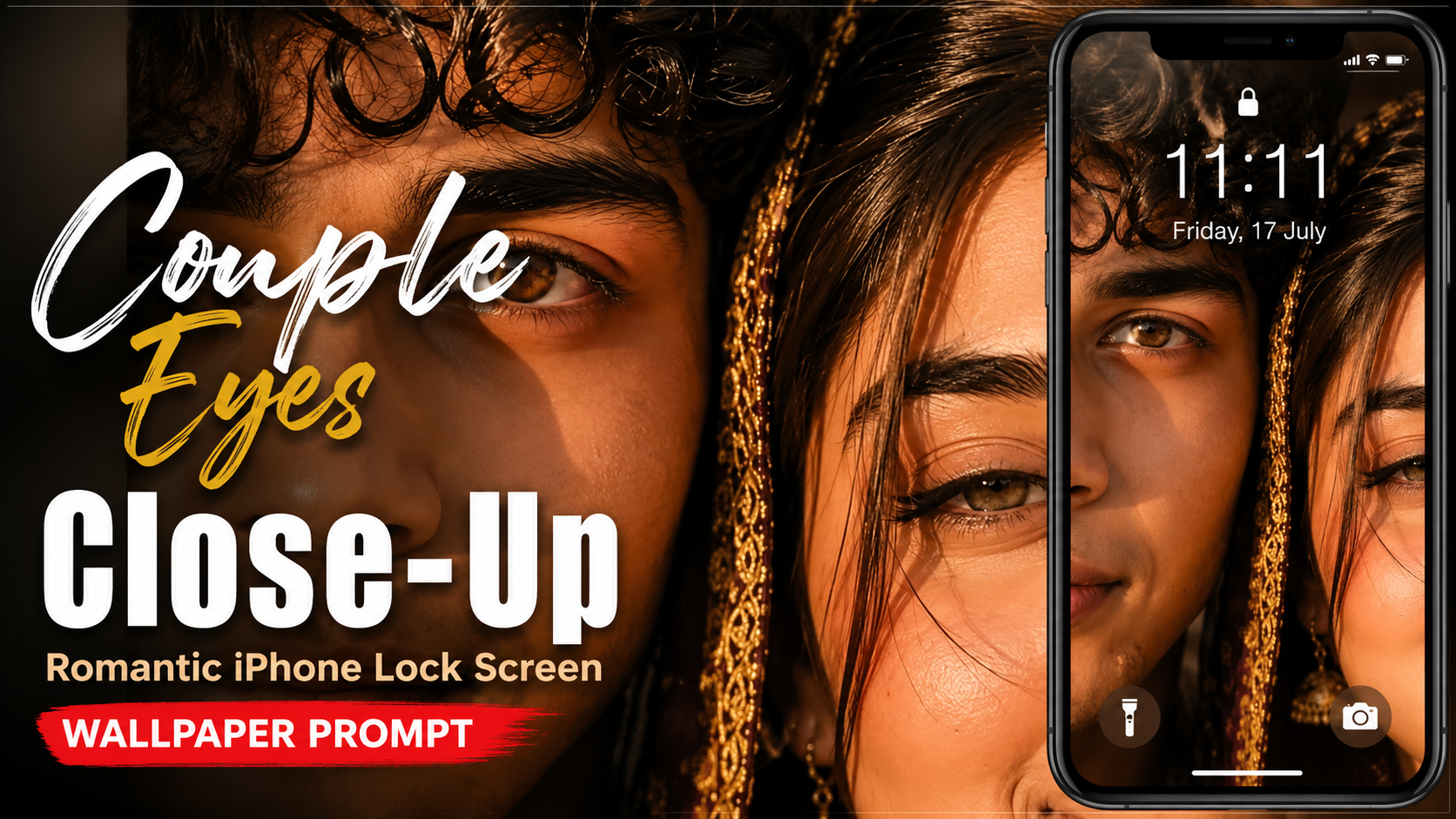
Couple Eyes Close-Up – Romantic iPhone Lock Screen Wallpaper Prompt

How to Use the Romantic Couple Eyes iPhone Lock Screen Prompt

This AI image prompt can help you create a romantic, ultra-realistic iPhone-style lock screen wallpaper featuring a close-up of a couple’s eyes, cinematic lighting, realistic skin details, and an iOS-inspired layout. Follow these steps to get the best result.

1. Choose an AI Image GeneratorOpen an AI image generation tool that supports detailed text prompts and, preferably, reference images.

2. Copy the Complete PromptCopy the entire prompt exactly as provided. It contains important instructions for the couple’s facial composition, eye details, lighting, background, lock screen elements, and image quality.

3. Upload Reference PhotosIf you want the generated wallpaper to resemble a specific couple, upload clear reference photos of both people. Use high-quality images where the eyes and facial features are clearly visible.

4. Paste the PromptPaste the copied prompt into the AI generator’s prompt box. If the tool supports image references, add the uploaded photos as references.

5. Select a 9:16 RatioSet the image aspect ratio to 9:16. This vertical format is ideal for smartphone wallpapers and provides enough space for the lock screen layout.

6. Generate the ImageClick Generate, Create, or the equivalent button. The AI will create the image based on the instructions in the prompt

.7. Check the DetailsReview the generated result carefully. Check the eyes, eyelashes, skin texture, facial positioning, lighting, hair strands, and overall romantic composition

.8. Regenerate if NeededIf some details are incorrect, generate another variation. You can also slightly modify the prompt to improve facial positioning, eye expressions, or lighting.

9. Save the Best ResultChoose the most realistic and visually appealing version and save it in the highest available quality

.10. Set It as Your Lock ScreenFinally, use the generated 9:16 image as your smartphone wallpaper. For the best appearance, crop or position it so the important facial details remain visible around the lock screen clock

.Pro Tip: Clear reference images, consistent lighting, and high-resolution inputs usually produce better facial details and more realistic results.
✦ AI PROMPT


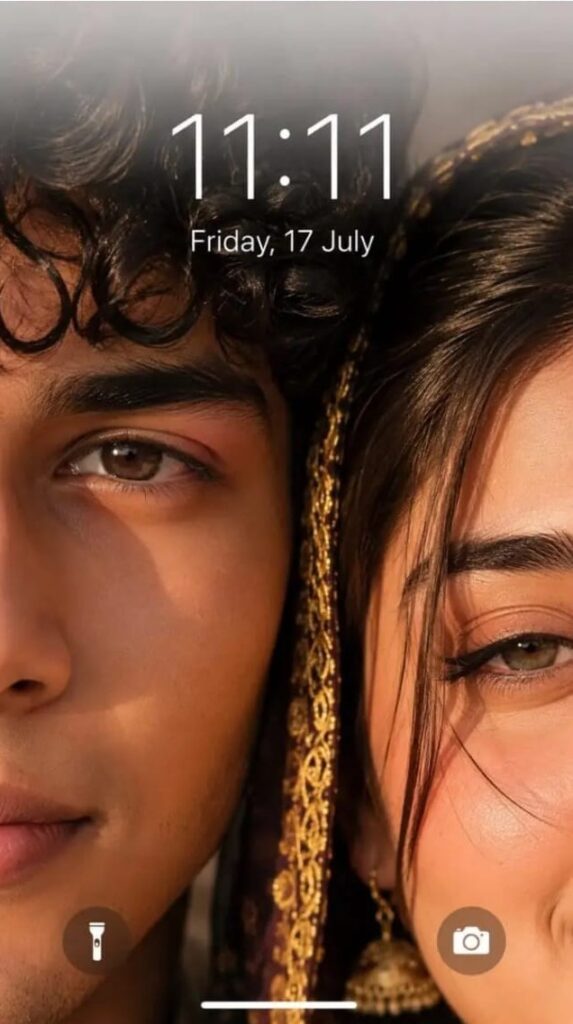
Ultra-realistic iPhone lockscreen wallpaper, extreme close-up of couple faces, only one eye each visible - boy eye fully open, girl eye slightly closed (romantic). Faces almost touching, natural skin texture, pores, detailed eyelashes, hazel-brown glossy eyes. Warm golden hour cinematic lighting, soft reflections, few hair strands between faces, shallow depth blurred background. Top: soft white translucent blur (iOS depth effect), time "11:11" with date "Friday, 17 July".
Bottom: iPhone-style flashlight (left) and camera (right) icons. 8K, HDR, ultra-detailed, realistic, 9:16.


Prompt:
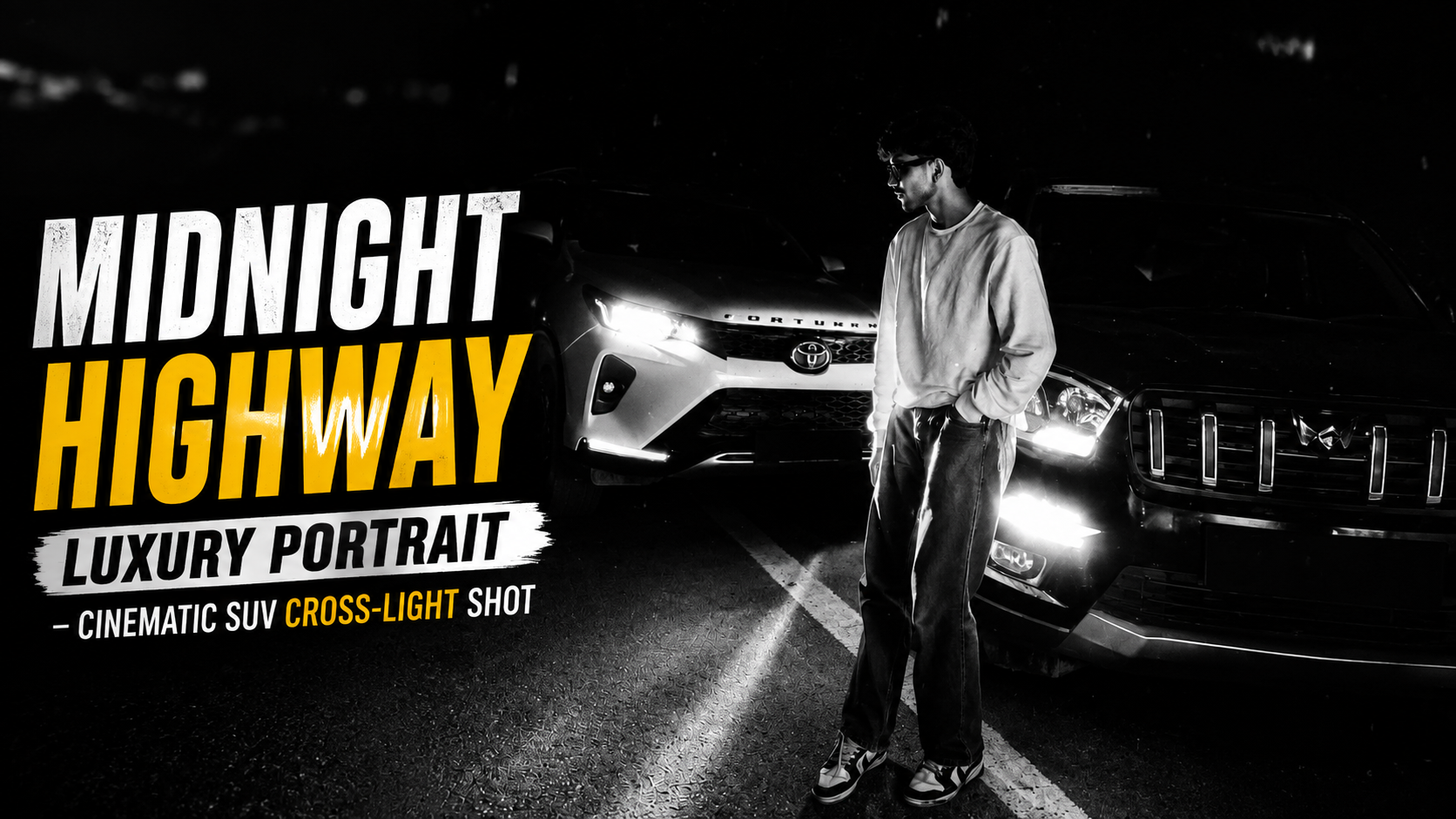
      

Highway Luxury Portrait – Cinematic SUV Cross-Light Shot Prompt

How to Use This Cinematic Night Portrait Prompt (Step-by-Step Guide)

1. Choose the Right Platform Sabse pehle, is prompt ko use karne ke liye ek powerful AI image generation tool select karein jaise MidJourney, Leonardo AI, ya Stable Diffusion. Yeh tools ultra-realistic outputs dene mein best hote hain

.2. Upload Your Reference Image Prompt mein clearly mention hai “use the uploaded image as the only reference.” Iska matlab hai ki aapko apni original photo upload karni hogi. Yeh step identity lock ke liye bahut important hai.

3. Paste the Full Prompt Properly Ab poora prompt copy karke AI tool ke prompt section mein paste karein. Dhyaan rahe ki koi bhi line miss na ho, especially lighting aur camera details

.4. Maintain Identity Lock Agar tool mein “image weight” ya “reference strength” option ho, usse high rakhein (0.7–1.0). Isse face, hairstyle aur body same rahegi

.5. Aspect Ratio Set Karein Agar aapko cinematic look chahiye, toh 4:5 ya 16:9 aspect ratio select karein depending on use (Instagram ya thumbnail)

.6. Negative Prompt Add Karein Negative prompt ko ignore mat karein. Yeh unwanted issues jaise blur, distortion, ya cartoon effect ko avoid karta hai.

7. Lighting & Detail Settings Optimize Karein High quality, HDR, aur photorealistic settings ON rakhein. Steps (sampling steps) 30–50 aur CFG scale medium-high rakhein best results ke liye.

8. Multiple Variations Generate Karein Ek hi baar mein perfect output nahi milta. 3–4 variations generate karein aur best select karein.

9. Final Upscale & Sharpening Best image choose karne ke baad upscale option use karein (2x ya 4x) taaki 8K quality achieve ho sake.

10. Post-Editing (Optional) Agar zarurat ho, toh Lightroom ya Photoshop mein thoda contrast, sharpness aur glow enhance kar sakte hain for a premium finish.Is process ko follow karke aap ek high-end cinematic, magazine-quality portrait easily create kar sakte hain.

✦ AI PROMPT


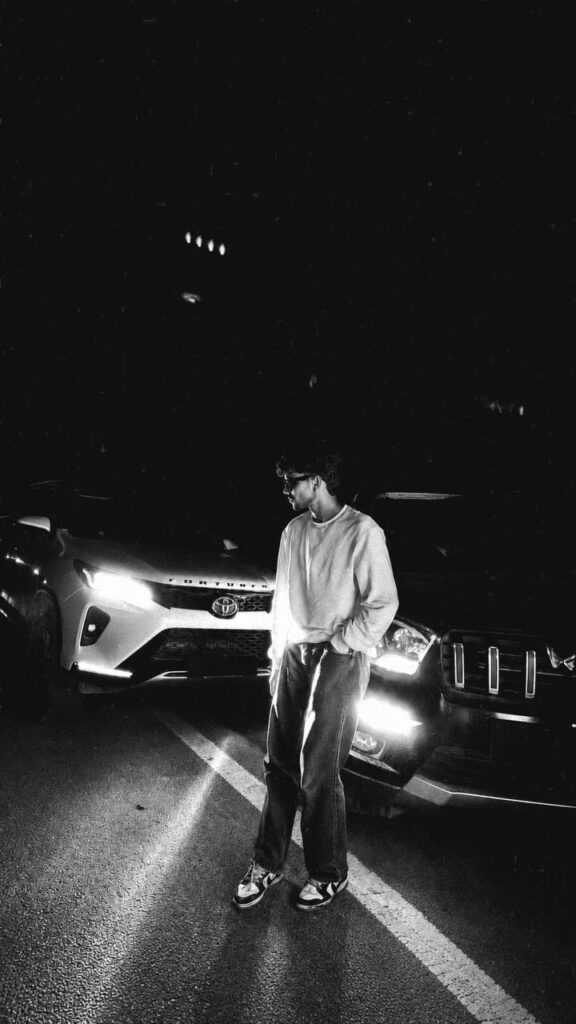
Create an ultra-realistic, premium cinematic night portrait using the uploaded image as the only reference. Preserve the subject’s facial identity, hairstyle, skin tone, body proportions, pose, outfit (oversized white sweatshirt, loose blue jeans, and white-red sneakers), and overall composition exactly as in the original image. The subject stands casually on the center road line with one hand in the pocket, looking to the side between two SUVs.The scene takes place on a deserted highway at night. On the left is a white Toyota Fortuner with bright white LED headlights on, and on the right is a black Mahindra Scorpio-N with glowing DRLs and amber parking lights, creating dramatic cross-lighting on the subject. Hide or blur both vehicle number plates while keeping the vehicle designs fully recognizable.Enhance the lighting with cinematic high-contrast HDR, realistic headlight glow, soft volumetric light beams, subtle lens flare, natural bloom, and realistic reflections on the road surface. Improve facial sharpness while maintaining natural skin texture. Add premium teal-and-orange cinematic color grading with deep blacks, rich contrast, crisp details, realistic shadows, and soft atmospheric haze.Maintain a clean black night sky with minimal stars, realistic depth, and a luxury automotive editorial aesthetic. Capture with a full-frame DSLR, 35mm lens, f/1.8, ISO 400, ultra-detailed, magazine-quality automotive photography, hyper-realistic, 8K resolution, razor-sharp focus, realistic textures, and natural dynamic range.Negative Prompt: low quality, blurry, noise, oversaturated colors, cartoon, CGI, painting, illustration, anime, artificial skin, distorted face, changed hairstyle, altered pose, extra limbs, duplicate subject, incorrect vehicle proportions, text, watermark, logo, visible number plates, motion blur, compression artifacts.


Prompt:
      

Dreamy Warm-Tone Cinematic Portrait Prompt

How to Use This Cinematic Portrait Prompt (Step-by-Step Guide)

1. Choose the Right AI Tool Sabse pehle kisi powerful AI image generator ka use karo jaise Midjourney, Leonardo AI, Stable Diffusion, ya DALL·E. Ye prompt specially high-quality portrait ke liye optimized hai, isliye tool bhi strong hona chahiye.

2. Prompt Copy-Paste Karein Diya gaya prompt directly copy karke AI tool ke prompt box me paste karo. Koi extra words add na karo agar same result chahte ho, kyunki isme already detailed instructions hain

.3. Aspect Ratio Set Karein (4:5) Image ka ratio vertical 4:5 rakho (Instagram friendly). Midjourney me “–ar 4:5” add kar sakte ho, aur dusre tools me manually select karo.

4. Reference Image (Optional but Powerful) Agar apni photo ko convert karna hai, toh apni image upload karke “image-to-image” ya “reference image” option use karo. Isse face aur identity maintain rahegi

.5. Lighting & Style Samjho Prompt me “soft warm diffused lighting” aur “cinematic color grading” diya hai. Iska matlab output me soft glow, natural shadows aur premium look milega—isse change na karein.

6. Lens & Quality Settings “85mm lens, f/1.8” ka matlab hai blurred background (bokeh) aur sharp face focus. Agar tool allow kare toh quality high (HD/4K) select karo

.7. Multiple Variations Generate Karein Ek baar me 3–4 images generate karo aur best select karo. AI har baar thoda different result deta hai.

8. Post-Editing (Optional) Final image ko Lightroom, Snapseed ya Photoshop me thoda enhance kar sakte ho—contrast, sharpness aur glow adjust karke aur cinematic bana sakte ho.

9. Use for Social Media Ye prompt specially Instagram, portfolio, aur profile pictures ke liye perfect hai. Iska output highly aesthetic aur premium feel deta hai.

10. Consistency Maintain Karein Same prompt ko thoda tweak karke multiple images banao taaki ek consistent “personal brand look”

✦ AI PROMPT


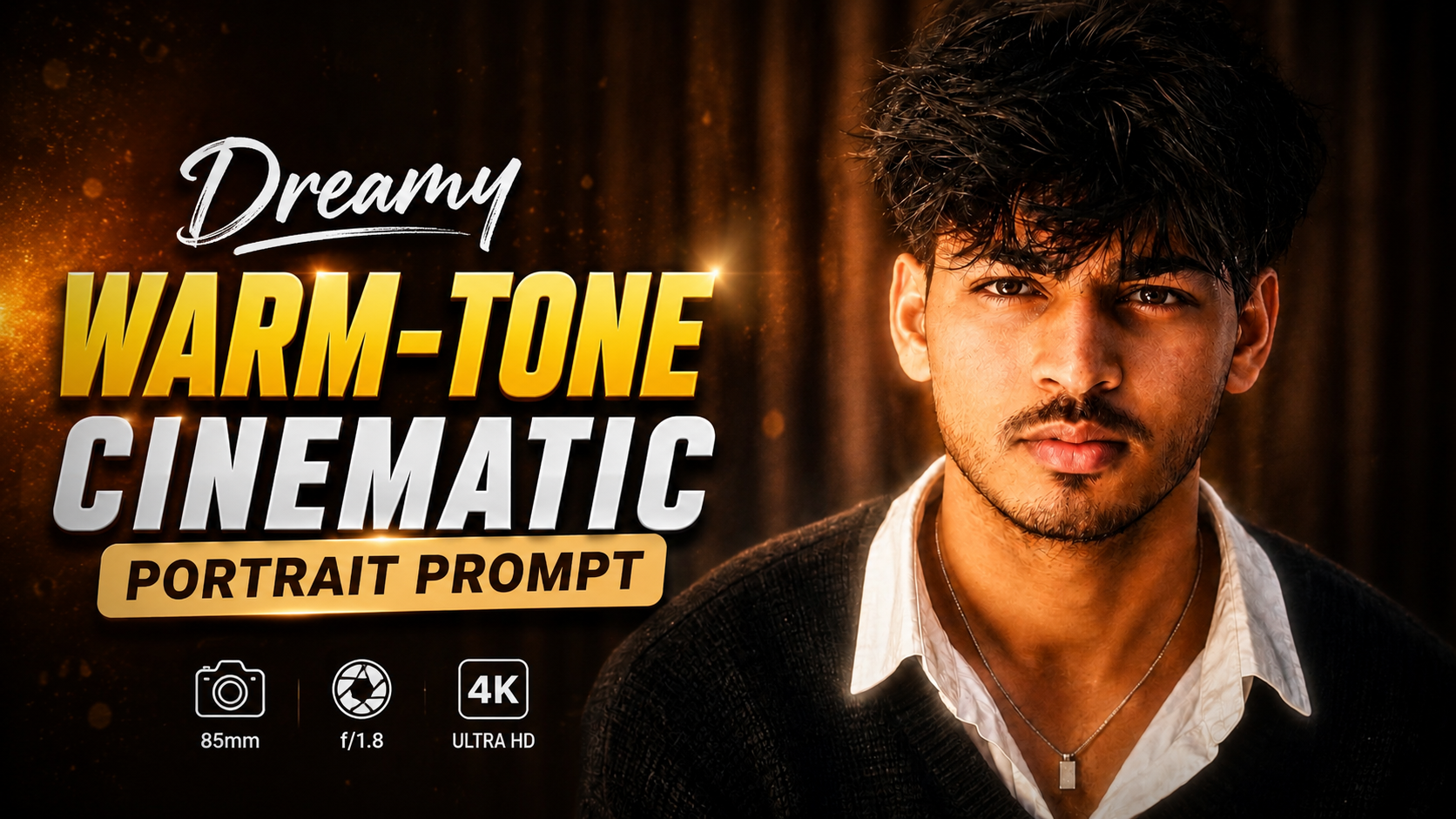
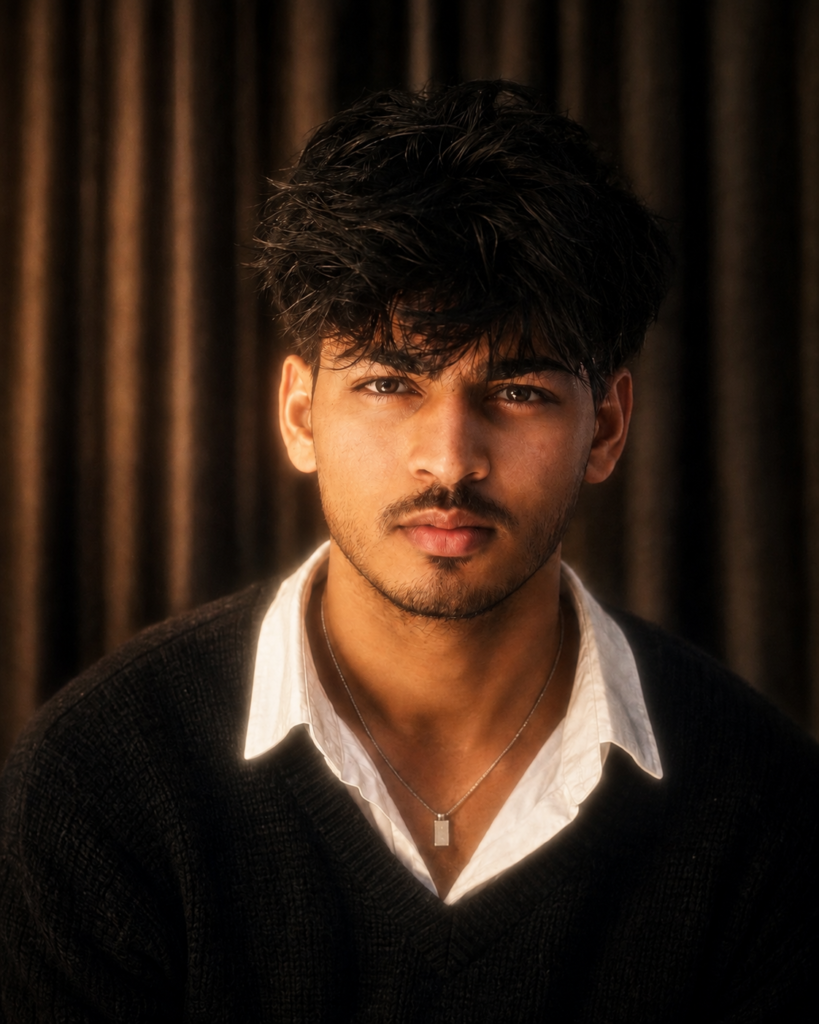
Ultra-realistic cinematic portrait of a young South Asian man, close-up upper-body framing, looking directly into the camera with a calm, confident expression. Thick, naturally voluminous messy black hair falling softly over the forehead, subtle thin mustache, natural facial features and realistic skin texture. Wearing a black textured V-neck sweater over a slightly oversized white collared shirt with the collar casually open, a thin silver chain with a small rectangular pendant visible around the neck. Dark, warm-toned indoor background with soft vertical curtain folds, shallow depth of field and subtle bokeh. Soft warm diffused frontal lighting gently illuminating the face, slightly dreamy glow, natural shadows, muted dark tones, cinematic color grading, soft film grain, realistic photography, 85mm portrait lens, f/1.8, high detail, photorealistic, 4K, vertical 4:5 composition.


Prompt:
      

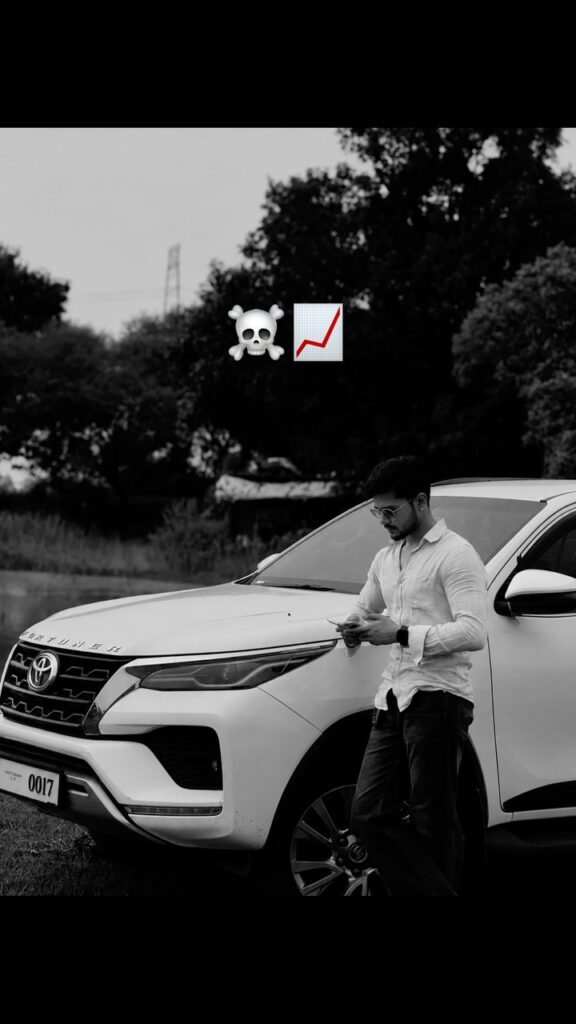
Cinematic Black & White Fortuner Lifestyle Portrait AI Prompt

How to Use This AI Photo Prompt for Creating a Realistic Toyota Fortuner Portrait

AI image prompts are powerful instructions that help artificial intelligence tools create realistic images according to your imagination. This prompt is designed to recreate a cinematic lifestyle portrait while keeping your original face identity and natural features unchanged. Follow these steps to use this prompt properly.

1. Select a Good AI Image GeneratorFirst, choose an AI image generation tool that supports image references or face preservation features. Open the image creation section and select the option to upload your own photo as a reference

.2. Upload Your Original PhotoUpload a clear, high-quality photo of yourself. Make sure your face is visible properly, with good lighting and no heavy filters. The AI will use this image as the main identity reference.

3. Copy and Paste the PromptCopy the complete AI prompt and paste it into the text prompt box. Do not remove important instructions like preserving face structure, hairstyle, beard, skin tone, and natural features.

4. Maintain Identity AccuracyThe identity preservation instructions help the AI understand that your face should remain the same. Avoid adding extra face-changing words like “handsome face,” “different hairstyle,” or “new look” because they may alter your original appearance.

5. Choose the Correct Image SettingsSelect a portrait format such as vertical 4:5 ratio. Use high-resolution or realistic photography settings if available. This will help create a more natural cinematic result

.6. Generate and Review the ImageAfter generating the image, check whether your face, body proportions, clothing, and background match your expectations. If needed, regenerate with small adjustments

.7. Improve Results with Small ChangesFor better output, you can modify details like lighting, camera angle, or background while keeping the identity instructions unchanged.

ConclusionBy using the correct reference photo, maintaining the identity instructions, and choosing realistic settings, you can create a professional-looking Toyota Fortuner lifestyle portrait with a cinematic black-and-white photography style.

✦ AI PROMPT


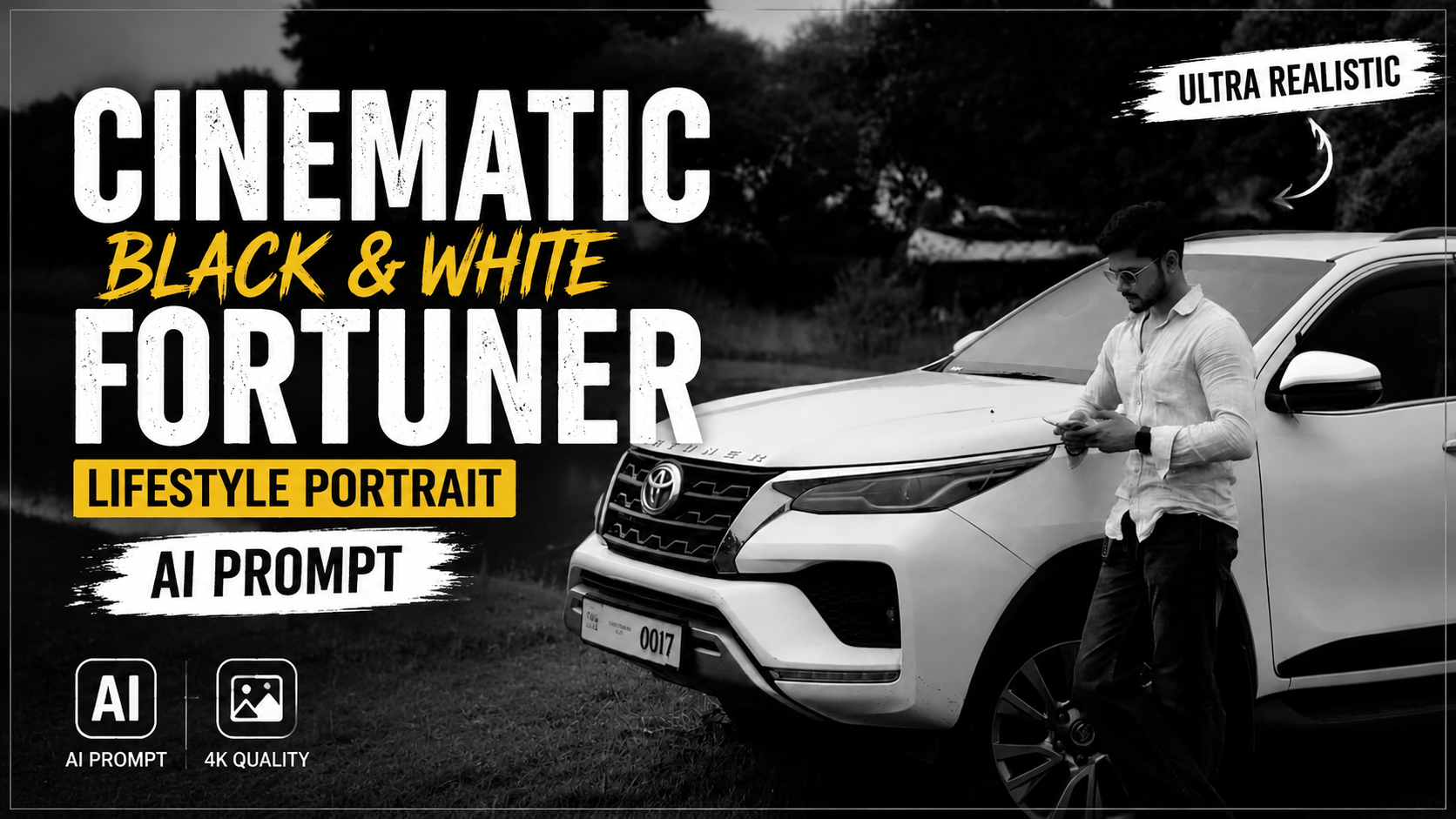
Use my uploaded photo as the only identity reference. Preserve my exact face, facial structure, hairstyle, beard, skin tone and natural features. Recreate this scene: I am standing casually beside the front side of a white Toyota Fortuner, looking down at a smartphone held in both hands, wearing a loose white button-up shirt, dark trousers, glasses and a smartwatch. Dense trees and roadside vegetation in the background, black-and-white photography, soft overcast daylight, deep natural shadows, realistic proportions, candid cinematic lifestyle photograph, vertical 4:5.


Prompt:
      

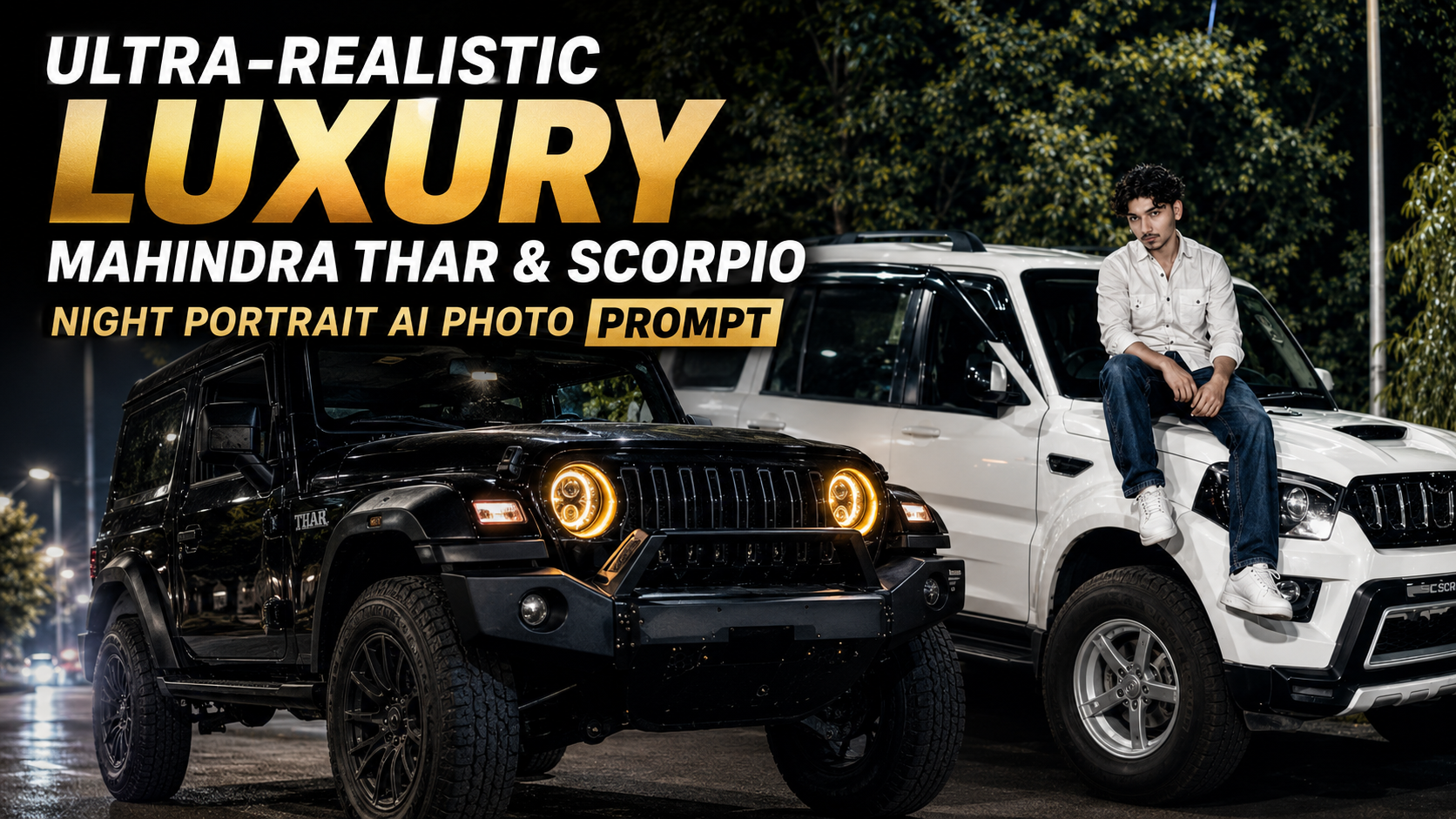
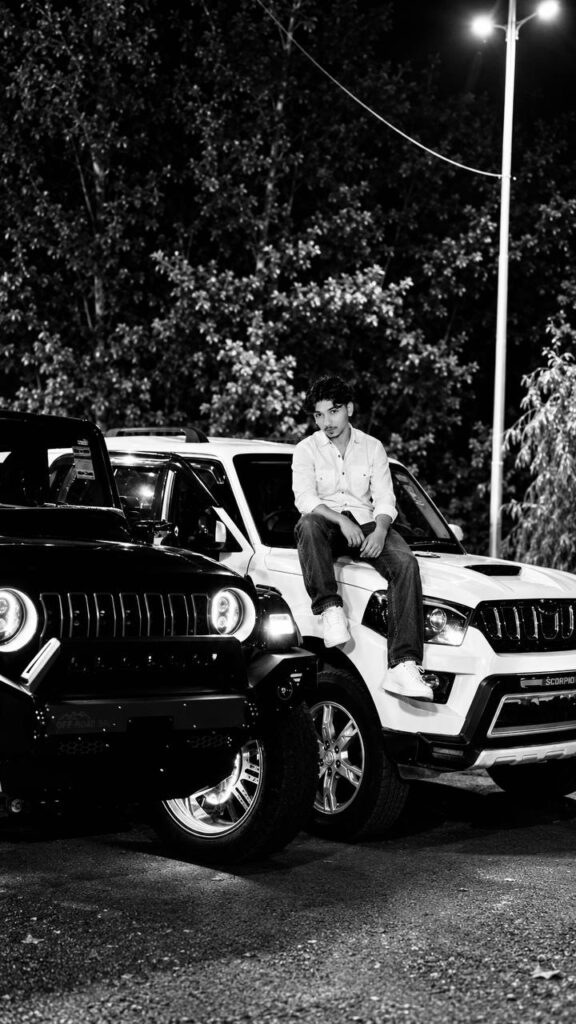
Ultra-Realistic Luxury Mahindra Thar & Scorpio Night Portrait AI Photo Prompt

How to Use the Ultra-Realistic Luxury Mahindra Thar & Scorpio Night Portrait AI Prompt

Creating a professional-looking luxury automotive portrait with AI is easy when you use the right prompt and reference image. Follow these simple steps to get the best possible result

.1. Choose a High-Quality Reference ImageStart by selecting a clear, high-resolution photo of the subject. Make sure the face, hairstyle, clothing, pose, and vehicles are clearly visible. A good reference image helps the AI preserve important details accurately.

2. Upload Your ImageOpen your preferred AI image-generation or image-editing tool and upload the reference photograph. Use the uploaded image as the primary reference for the entire generation process.

3. Copy the Complete PromptCopy the full Ultra-Realistic Luxury Mahindra Thar & Scorpio Night Portrait AI Prompt and paste it into the prompt or instruction box. Do not remove important identity-preservation or vehicle-related instructions.

4. Keep Identity Preservation InstructionsThe prompt specifically asks the AI to preserve the subject’s facial identity, hairstyle, beard, skin tone, expression, body proportions, pose, and gaze. These instructions are important for maintaining a natural and recognizable appearance

.5. Maintain the Vehicle CompositionThe prompt instructs the AI to keep both SUVs in the scene—the black Mahindra Thar in the foreground and the white Mahindra Scorpio behind it. This helps maintain the desired luxury automotive composition

.6. Generate the ImageAfter uploading the reference image and pasting the prompt, select a high-quality generation setting if available. Choose a 9:16 aspect ratio for a vertical portrait suitable for Instagram Reels, YouTube Shorts, Pinterest, and mobile screens.

7. Check the Final ResultAfter generation, carefully inspect the face, vehicles, hands, clothing, headlights, reflections, and overall proportions. If any important detail looks incorrect, regenerate the image using the same reference image and prompt

.8. Use the Negative PromptAlways include the provided negative prompt when your AI tool supports it. It helps reduce unwanted results such as distorted faces, duplicate objects, unrealistic reflections, low-quality details, and artificial-looking textures

.9. Final EnhancementFor the best result, choose the highest available resolution and avoid excessive editing after generation. The goal is to maintain realistic skin texture, cinematic lighting, detailed vehicles, and a premium automotive photography appearance.

✦ AI PROMPT


Use the uploaded image as the only and exclusive reference. Preserve the subject’s facial identity 100% exactly—do not alter the face shape, hairstyle, beard, skin tone, expression, body proportions, pose, or gaze. Keep the subject wearing the same white striped button-up shirt, blue jeans, sunglasses, and maintain the natural sitting pose on the white Mahindra Scorpio. Preserve both SUVs in the composition: the modified black Mahindra Thar in the foreground with its amber halo headlights illuminated and the white Mahindra Scorpio parked behind it. Maintain the same camera angle, perspective, and vehicle proportions.

Create an ultra-realistic luxury automotive editorial at night with a premium cinematic atmosphere. The scene takes place on a clean road surrounded by dense green trees under modern streetlights. Enhance the environment with subtle mist, soft volumetric lighting, realistic reflections on the paintwork, and gentle atmospheric depth. Keep the black Thar dominant in the foreground while the subject sits confidently on the Scorpio’s bonnet, creating a bold luxury SUV lifestyle composition.

Improve every detail with photorealistic HDR lighting, realistic metallic reflections, crisp body panel textures, glossy paint, detailed alloy wheels, premium tire textures, and ultra-sharp headlights. Add soft cinematic rim lighting around the subject, natural skin texture, realistic fabric folds, and balanced contrast without changing any facial features. The background should feature creamy depth of field while preserving the trees, road, and streetlight ambience.

Apply ARRI Alexa 35 color science, Kodak Portra-inspired cinematic color grading, rich blacks, warm amber highlights from the Thar’s lights, cool moonlit shadows, realistic global illumination, subtle lens bloom, and premium magazine-quality automotive photography.

Camera: Sony A1, 35mm lens, f/2.8, low-angle composition, HDR, ultra-detailed, razor-sharp focus, realistic reflections, professional automotive commercial style, 8K resolution, 9:16 aspect ratio.

Negative Prompt: Cartoon, CGI, illustration, painting, anime, low resolution, blurry, overprocessed skin, extra limbs, distorted face, altered facial identity, incorrect vehicle proportions, duplicate objects, unrealistic reflections, oversaturated colors, watermark, logo, text, noise, artifacts.


Prompt:
      

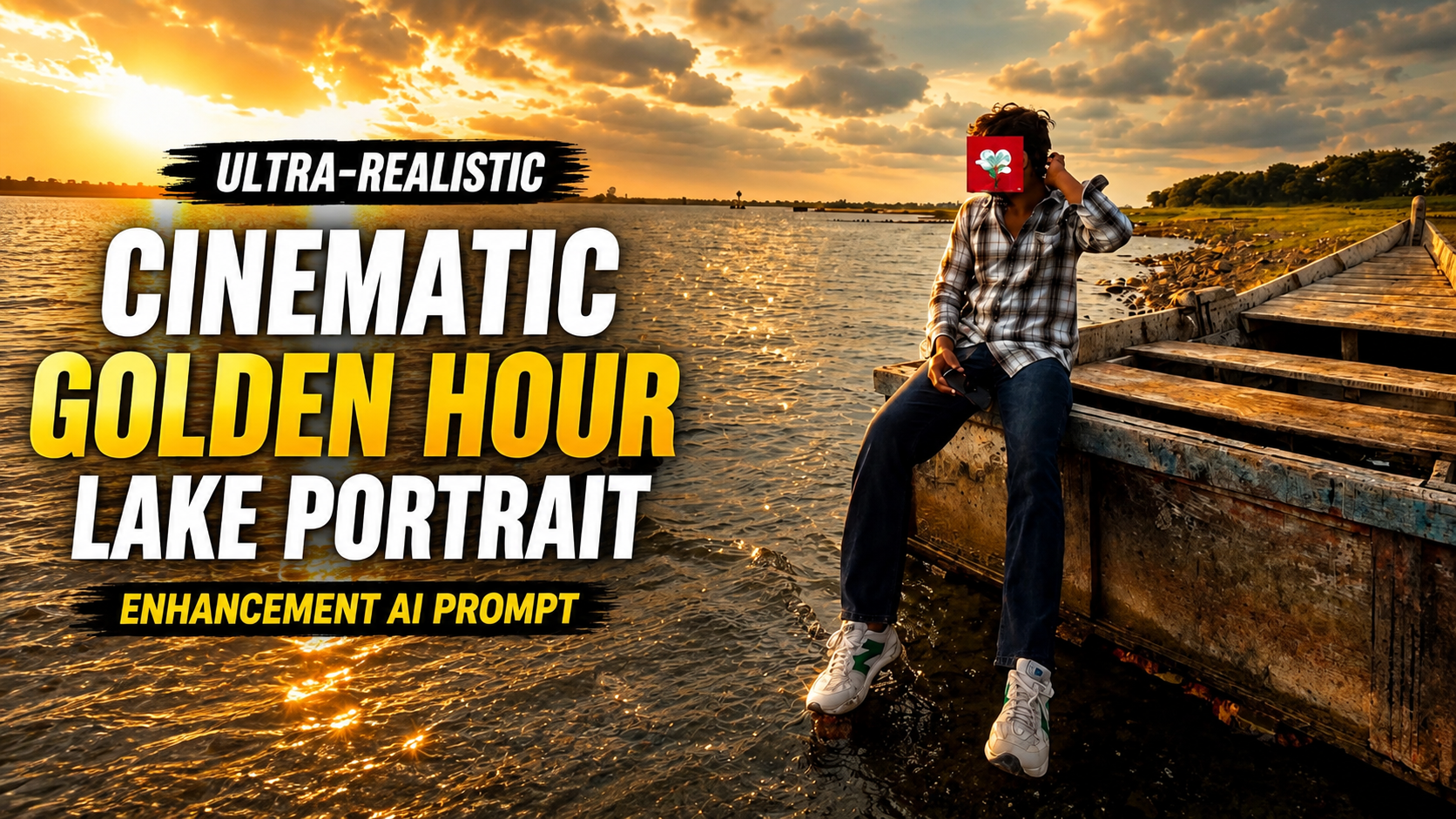
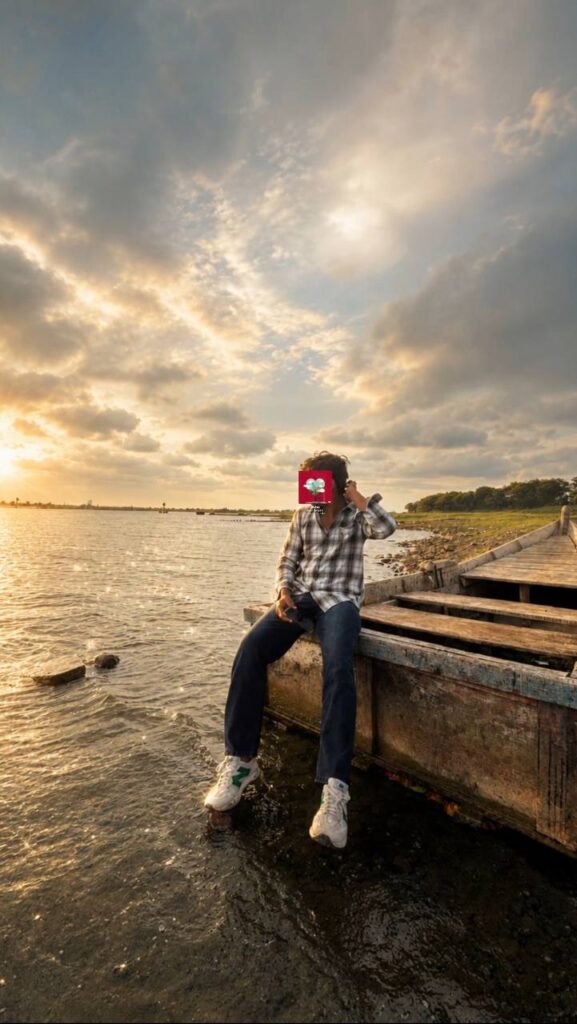
Ultra-Realistic Cinematic Golden Hour Lake Portrait Enhancement AI Prompt

How to Use the Ultra-Realistic Cinematic Golden Hour Lake Portrait Enhancement AI Prompt

1. Upload Your Original Photo Start by uploading the original image you want to enhance. This prompt is designed to use only your uploaded photo as the reference.

2. Copy the Complete Prompt Copy the entire prompt exactly as provided. Avoid removing or changing any instructions, as each one helps the AI preserve the original image while improving its quality.

3. Paste It into an AI Image Generator Open your preferred AI image generation or editing platform, upload your photo, and paste the prompt into the text input box

.4. Preserve the Original Identity The prompt instructs the AI to keep the person’s face, hairstyle, beard, sunglasses, clothing, accessories, body proportions, pose, composition, camera angle, and background exactly the same. Only the lighting and visual quality should be enhanced.

5. Create a Golden Hour Cinematic Look The AI will add warm sunset lighting, soft golden highlights, realistic reflections on the lake, gentle volumetric sun rays, and natural atmospheric haze to create a premium cinematic appearance.

6. Enhance Image Quality Advanced HDR lighting, realistic global illumination, sharper textures, and balanced color grading improve the overall quality while maintaining a natural and photorealistic look

.7. Use a High-Resolution Image For the best results, upload a clear, high-resolution photo. Better image quality gives the AI more detail to work with and produces a more realistic final result.

8. Generate and Review the Output After processing, review the enhanced image to ensure it matches your expectations. The final result should retain the original composition and identity while delivering a luxury travel editorial style with warm amber tones, smooth dynamic range, subtle lens bloom, natural bokeh, and an ultra-realistic 8K cinematic finish.

✦ AI PROMPT


Use the uploaded image as the only reference. Preserve the original photograph exactly as it is. Do NOT change, replace, redraw, regenerate, beautify, or alter the person’s face, hairstyle, sunglasses, beard, facial features, skin tone, body proportions, pose, expression, clothing, shoes, gold chain, wooden boat, composition, camera angle, perspective, water, or background. Maintain 100% identical facial identity and every original detail.
Transform the image into an ultra-realistic cinematic golden hour masterpiece. Add warm sunset light coming from the side, creating soft golden highlights on the face, hair, shirt, boat, and water. Enhance the lake with realistic golden reflections, subtle shimmering ripples, and natural depth while preserving the original water pattern.
Introduce soft volumetric sun rays, gentle atmospheric haze, premium HDR lighting, realistic global illumination, and high dynamic range. Improve texture clarity on the weathered wooden boat, clothing fabric, and sneakers while keeping everything natural and photorealistic.
Apply a luxury travel editorial color grade with warm amber tones, soft teal shadows, balanced contrast, realistic skin tones, crisp details, and smooth dynamic range. Add a subtle cinematic glow, delicate lens bloom, and premium depth without changing the framing.
Keep the background clean and realistic, with no extra objects or artificial elements. The final result should look like it was captured on a Sony A7R V with a 50mm f/1.4 GM lens, featuring 8K ultra-high resolution, razor-sharp details, natural bokeh, realistic reflections, premium cinematic lighting, and professional travel magazine quality while preserving the original identity and composition perfectly.


Prompt:
      

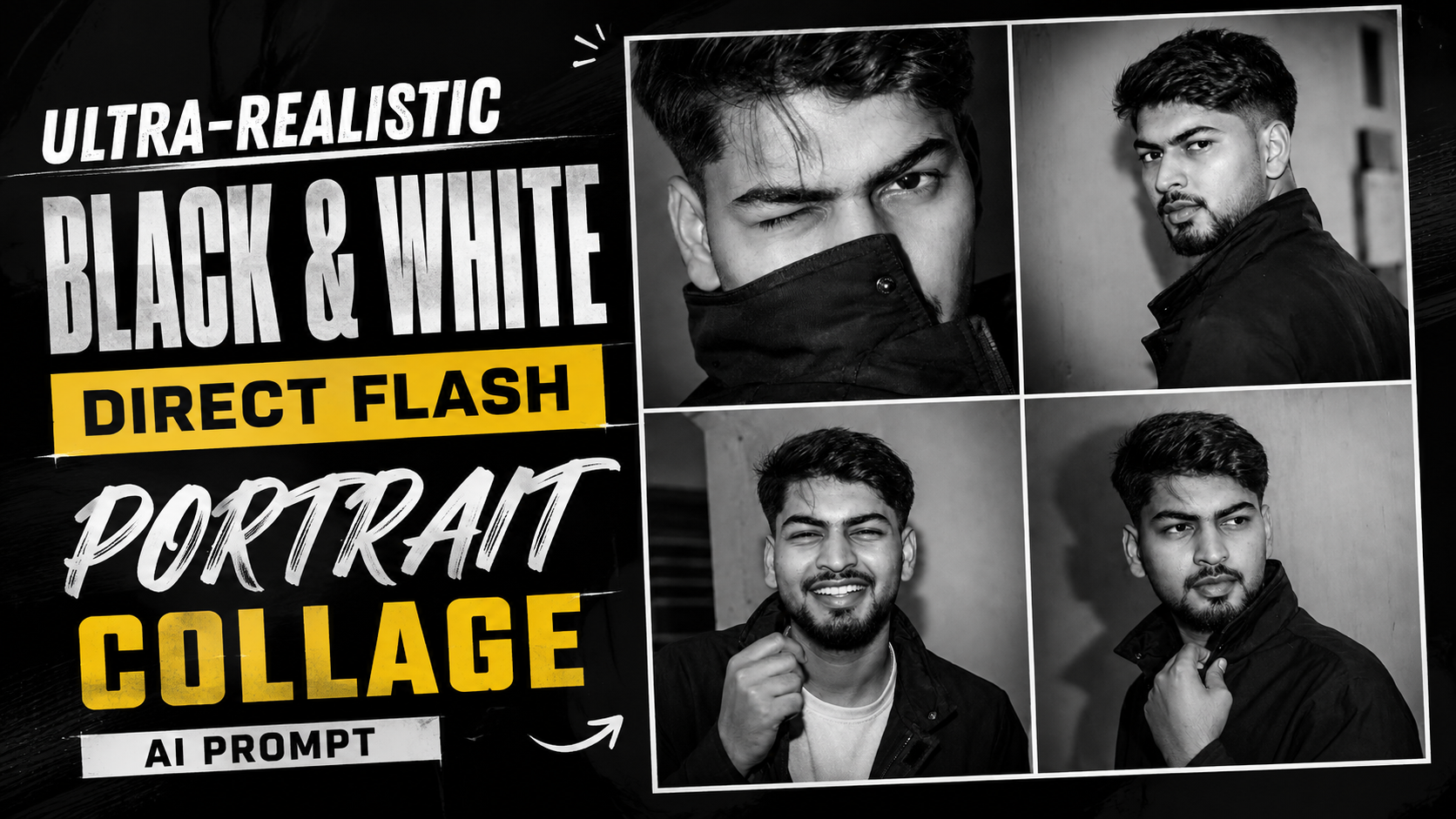
Ultra-Realistic Black & White Direct Flash Portrait Collage AI Prompt

How to Use the Ultra-Realistic Black & White Direct Flash Portrait Collage AI Prompt

1. Choose an AI Image GeneratorStart by using an AI image generator that supports reference images, such as ChatGPT Images, Google Gemini, Midjourney (where supported), or another compatible AI platform

.2. Upload Your Reference PhotoUpload a clear, high-resolution photo of yourself. Make sure your face is fully visible and well-lit so the AI can accurately recognize your facial features and hairstyle.

3. Copy and Paste the PromptPaste the complete prompt into the AI tool without removing any important instructions. The detailed prompt tells the AI exactly how to recreate the collage while preserving your identity.

4. Preserve Your IdentityKeep the instruction “Preserve my face and hairstyle exactly” in the prompt. This helps the AI maintain your facial identity, hairstyle, and overall appearance as closely as possible.

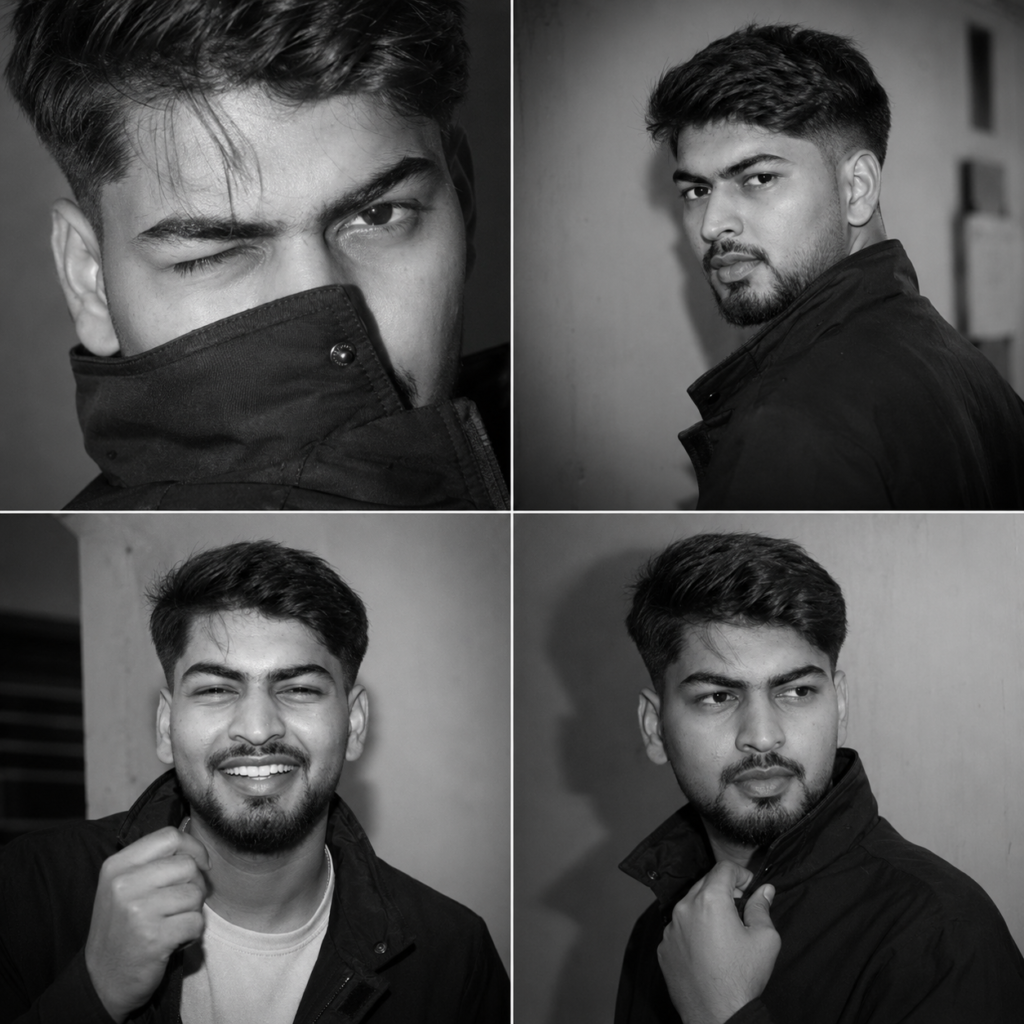
5. Generate the 2×2 CollageRun the prompt to create a 2×2 collage featuring four black-and-white direct-flash portraits. Each frame will display a unique pose and expression, including a playful wink, profile view, smiling portrait, and off-camera look.

6. Review the ResultsCarefully examine the generated collage. If any portrait doesn’t accurately match your appearance or the requested pose, regenerate the image using the same prompt or make small adjustments if needed

.7. Download the Final ImageOnce you’re satisfied with the result, save the collage in the highest available resolution. It can be used for social media, creative portfolios, profile pictures, or personal projects

.8. Tips for Better Results- Use a sharp, high-quality reference photo.- Keep the complete prompt unchanged.- Make sure your face is clearly visible with good lighting.- Generate multiple versions to find the best result.- High-resolution reference images usually produce more realistic and consistent portraits.

✦ AI PROMPT


Use my uploaded photo as the

identity reference. Preserve my face

and hairstyle exactly

Create a 2x2 collage of four spontaneous direct-flash

portraits .Top left: extreme close-up, playful wink, jacket collar covering part of the mouth, loose strands of hair across the face.

Image Collage

A2 Itimes 2 grid containing four black-and-white portraits of a man • Top Left: Close-up of his winking

with the jacket collar pulled up over her mouth.

• Top Right: Profile view looking over his shoulder toward the camera.

•Bottom Left: Smiling and laughing while holding.

•Bottom Right: Looking slightly

off-camera while holding his collar.


Prompt:
      

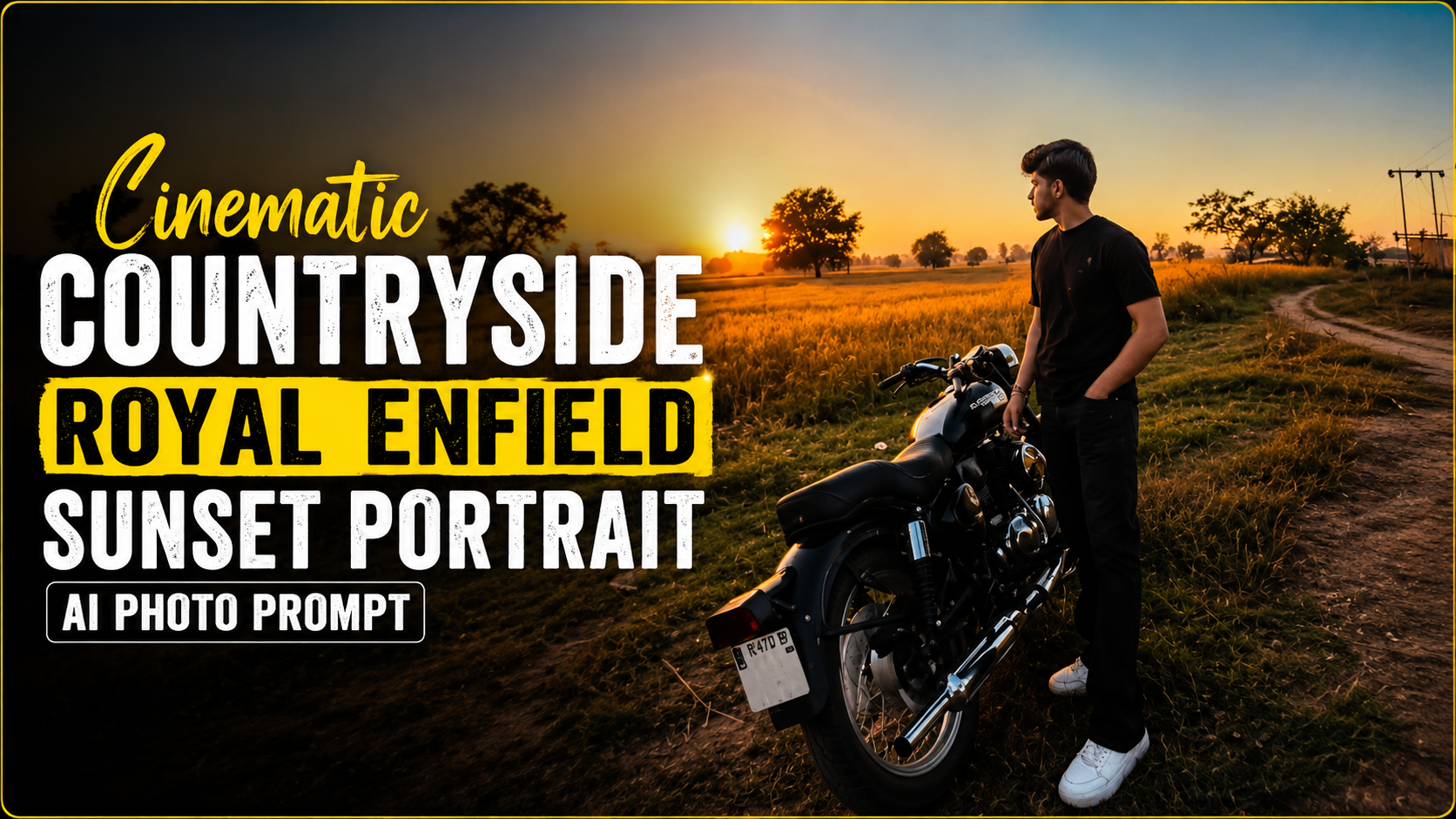
Cinematic Countryside Royal Enfield Sunset Portrait AI Photo Prompt

How to Use the Ultra-Realistic Cinematic Countryside Royal Enfield Sunset Portrait AI Prompt

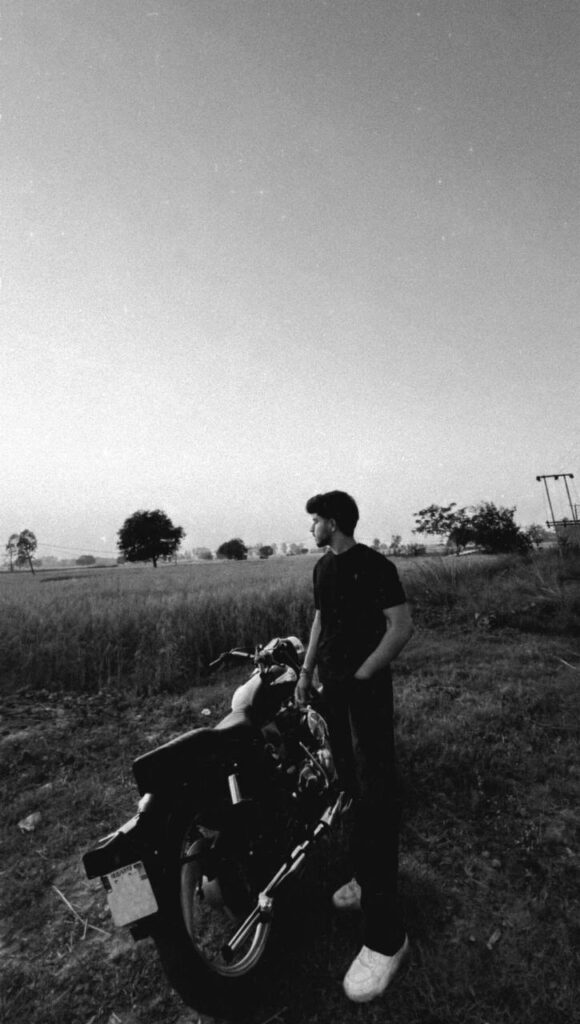
1. Upload Your PhotoStart by uploading a clear, high-resolution image of yourself standing beside your Royal Enfield motorcycle. Make sure your face, outfit, and bike are clearly visible for the best results

.2. Copy and Paste the PromptCopy the entire AI prompt exactly as provided and paste it into your preferred AI image generation tool. Avoid removing important details, as each line helps the AI create a realistic result

.3. Keep the Reference ImageThe prompt is designed to use your uploaded image as the only reference. This helps preserve your facial identity, hairstyle, beard, skin tone, clothing, body proportions, and motorcycle without unwanted changes.

4. Maintain the Original CompositionThe AI should keep the same pose and framing as the original image. The subject should remain standing beside the motorcycle with one hand in the pocket while looking toward the sunset.

5. Let the AI Create the New EnvironmentAlthough the pose remains unchanged, the background will transform into a peaceful countryside with golden crop fields, trees, a dirt road, utility poles, and a beautiful sunset sky

.6. Focus on RealismThe prompt includes HDR lighting, cinematic color grading, realistic reflections, detailed textures, and natural skin tones to produce a premium outdoor portrait.

7. Use High-Quality SettingsSelect the highest available image quality, such as HD or 4K/8K, to capture fine details and achieve a magazine-quality result.

8. Don’t Remove the Negative PromptThe negative prompt prevents common AI mistakes like distorted faces, blurry images, cartoon effects, duplicate people, watermarks, and unrealistic lighting.

9. Generate and RefineIf needed, regenerate the image once or twice while keeping the same prompt. Minor variations can improve lighting, sharpness, and overall realism

.10. Save and ShareOnce you’re satisfied with the final portrait, download the highest-resolution version. It’s perfect for Instagram, YouTube thumbnails, wallpapers, or professional social media posts thanks to its cinematic and ultra-realistic look.

✦ AI PROMPT


Create an ultra-realistic cinematic countryside portrait using the uploaded image as the only reference. Preserve the subject’s facial identity 100% exactly—do not alter the face shape, hairstyle, beard, skin tone, expression, body proportions, pose, gaze direction, clothing (plain black oversized T-shirt, black pants, white sneakers), or the black Royal Enfield motorcycle. Keep the composition identical, with the subject standing beside the motorcycle, one hand in the pocket while looking toward the sunset.

The location is a peaceful rural landscape with golden crop fields stretching into the distance, scattered trees, a narrow dirt road, utility poles, and a clear evening sky transitioning from warm orange near the horizon to soft blue overhead. Capture the warm golden-hour sunlight illuminating the scene naturally, with realistic long shadows, soft rim lighting around the subject, and subtle atmospheric haze.

Enhance the image with premium cinematic color grading, HDR lighting, realistic reflections on the motorcycle’s chrome parts, crisp textures, natural skin tones, and ultra-detailed grass, soil, and crop fields. Maintain a wide-angle perspective (24–28mm), low camera angle, magazine-quality outdoor lifestyle photography, shallow depth of field with soft background separation, and true-to-life proportions.

Style: Ultra-photorealistic, DSLR quality, cinematic travel editorial, natural colors, high dynamic range, 8K, sharp focus, realistic lighting, premium outdoor portrait, clean composition, no artificial effects.

Negative Prompt: cartoon, anime, CGI, painting, illustration, low quality, blurry, oversharpened, noisy, unrealistic lighting, distorted face, altered identity, extra limbs, duplicate person, cropped body, watermark, text, logo.


Prompt:
      

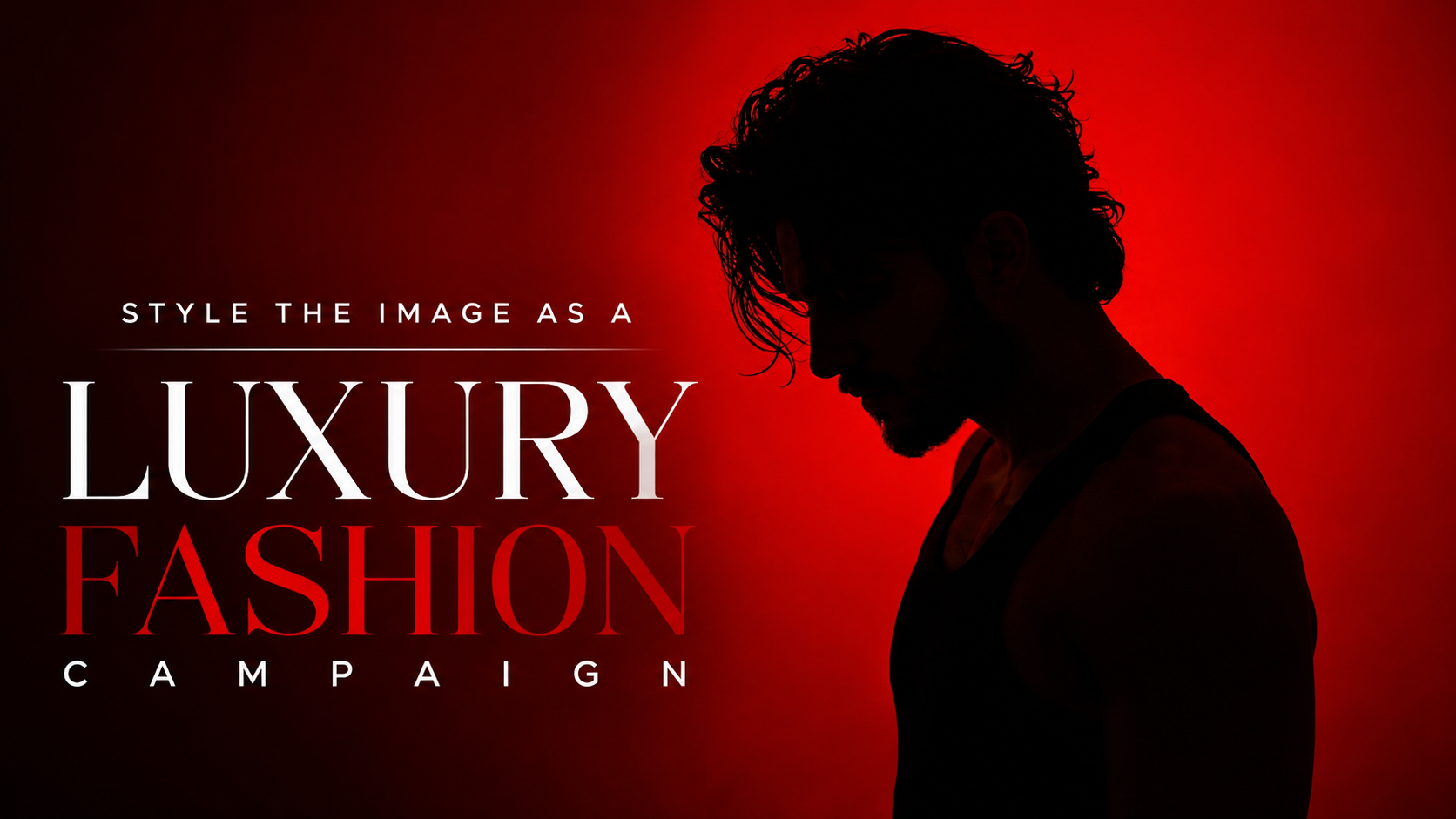
Style the image as a luxury fashion campaign

HOW TO USE THIS PROMPT STEP-BY-STEP GUIDE

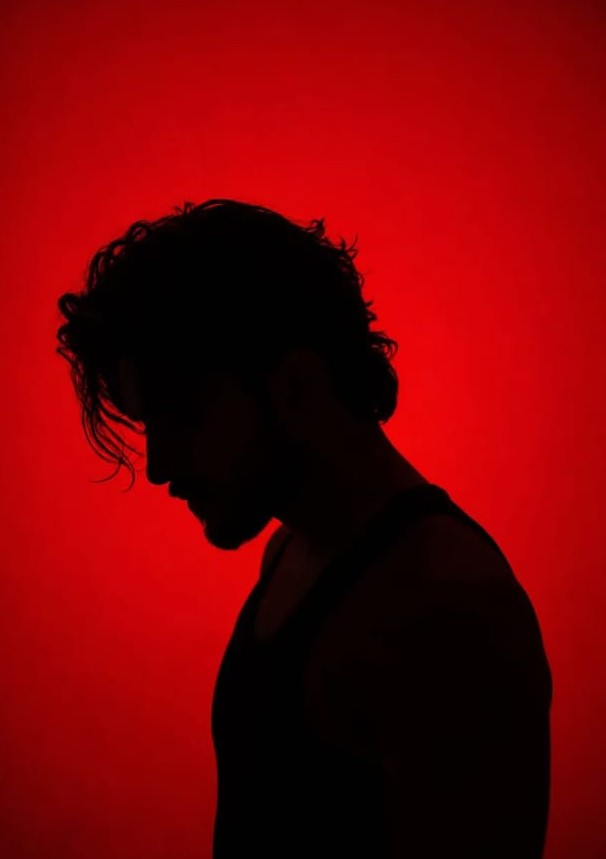
1. UNDERSTAND THE PROMPTThe prompt describes a high-fashion side-profile silhouette portrait.Key elements: side profile, dramatic red background, strong shadows, rim lighting, minimal visibility, luxury editorial style.

2. CHOOSE THE RIGHT AI TOOLUse high-quality image generation tools like Midjourney, DALL-E 3, Leonardo Al, or Stable Diffusion.These tools handle lighting, depth, and cinematic effects well.

3. COPY & PASTE THE PROMPTPaste the full prompt exactly as it is to maintain all details.Do not remove any part, as each line contributes to the final look.

4. ADJUST SETTINGS (IF NEEDED)Aspect Ratio: 2:3 or 3:4 (vertical portrait works best).Style/Mode: Choose “Photorealistic” or “Cinematic” for best results.Quality: Use high-resolution settings for sharp details

.5. GENERATE & REVIEW RESULTSGenerate the image and review it.Check if the silhouette, lighting, and background match the prompt.If needed, regenerate or tweak slightly (e.g., more dramatic lighting).

6. FINAL TOUCH (OPTIONAL)If using for commercial or social media, you can enhance the image in tools like Lightroom or Photoshop.Adjust contrast, shadows, or color grading for a more premium look

7. BEST USE CASESFashion campaignsSocial media editorialsAlbum coversPosters and branding visualsHigh-end advertisements

✦ AI PROMPT


Create an ultra-realistic, high-fashion editorial portrait of a young man in a dramatic side-profile silhouette. The subject stands with his head slightly bowed, creating a contemplative and mysterious mood. He has medium-length wavy black hair with loose strands falling over his forehead, a well-groomed beard, and wears a fitted black sleeveless tank top. His face and body remain mostly concealed in deep shadows, revealing only subtle facial contours and the clean outline of his profile.

The background is a seamless, vibrant crimson-red studio backdrop illuminated with a smooth gradient, transitioning from bright red behind the subject to darker red around the edges. Use a single soft backlight combined with minimal rim lighting to define the hair, nose, jawline, beard, neck, and shoulders while preserving a near-black silhouette. Maintain high contrast with rich blacks and intense reds.

Style the image as a luxury fashion campaign with cinematic color grading, dramatic lighting, soft falloff, and minimal


Prompt:
      

Golden Hour Portrait Enhancement AI Prompt

How to Use the Golden Hour Cinematic Photo Enhancement AI Prompt

1. Upload Your Original Photo

Sabse pehle apni original portrait photo kisi AI image editing tool mein upload karein. Best result ke liye high-quality aur clear image use karein.

2. Copy the Complete Prompt

Is Golden Hour Cinematic Photo Enhancement AI Prompt ko poora copy karein. Prompt ka har sentence important hai, isliye ise edit ya remove na karein.

3. Paste the Prompt

AI editor ke Prompt box mein copied prompt paste kar dijiye. Yeh prompt image ko enhance karega, na ki subject ki identity ko change karega.

4. Keep Identity Preserved

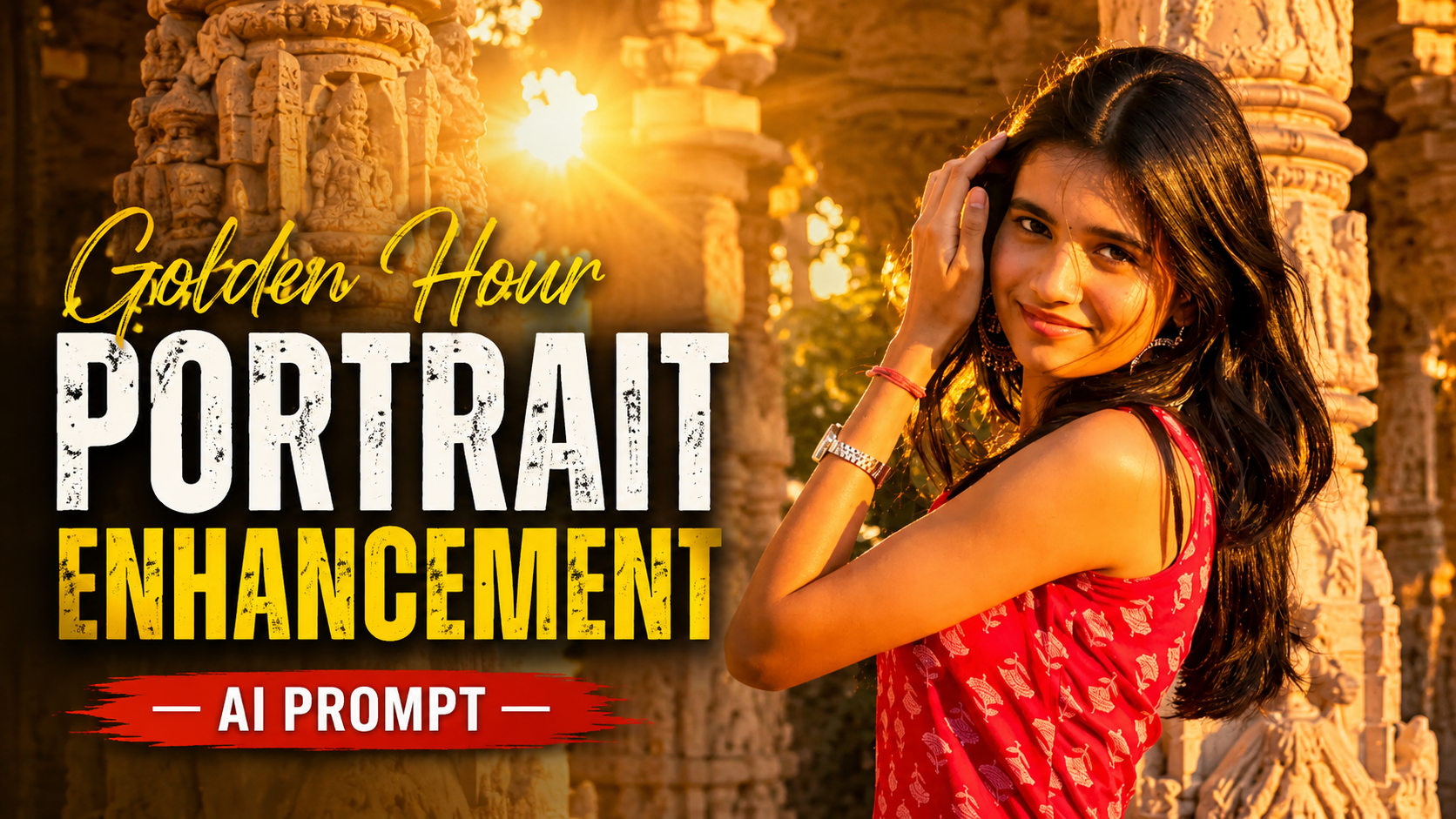
Prompt mein facial identity, hairstyle, skin tone, outfit, pose, accessories aur background ko exactly same rakhne ki instruction di gayi hai. Isliye final image original person jaisi hi dikhegi.

5. Generate the Enhanced Image

Generate ya Create button par click karein. AI image mein soft golden-hour sunlight, warm backlighting, cinematic lens flare, glowing bokeh aur realistic HDR color grading automatically apply karega.

6. Check the Final Result

Image generate hone ke baad details ko dhyan se dekhein. Face natural hona chahiye aur lighting realistic lagni chahiye. Agar zarurat ho to same prompt ke saath dobara generate karke aur bhi better result le sakte hain.

7. Download and Use

Final image ko download karke Instagram, Facebook, YouTube thumbnail, portfolio, website ya kisi bhi social media platform par use kar sakte hain. Is prompt ka main purpose original photo ko premium DSLR golden-hour portrait jaisa professional look dena hai, bina subject ki identity ya background ko badle.

✦ AI PROMPT


Enhance this exact uploaded photo while preserving the person's facial identity, hairstyle, skin tone, outfit, pose, accessories, and background exactly as in the original. Add soft golden-hour sunlight gently falling on the face from the upper-right side with natural warm highlights and realistic skin tones. Create beautiful warm backlighting behind the subject with subtle sun rays passing through the tree leaves, soft lens flare, glowing bokeh, and cinematic volumetric light. Increase overall warmth, contrast, clarity, and dynamic range while keeping the edit natural and ultra-realistic. Preserve all original details without changing the face or body. Professional DSLR color grading, HDR, realistic shadows, premium outdoor portrait, golden hour, 8K ultra-detailed, photorealistic.


Prompt: