
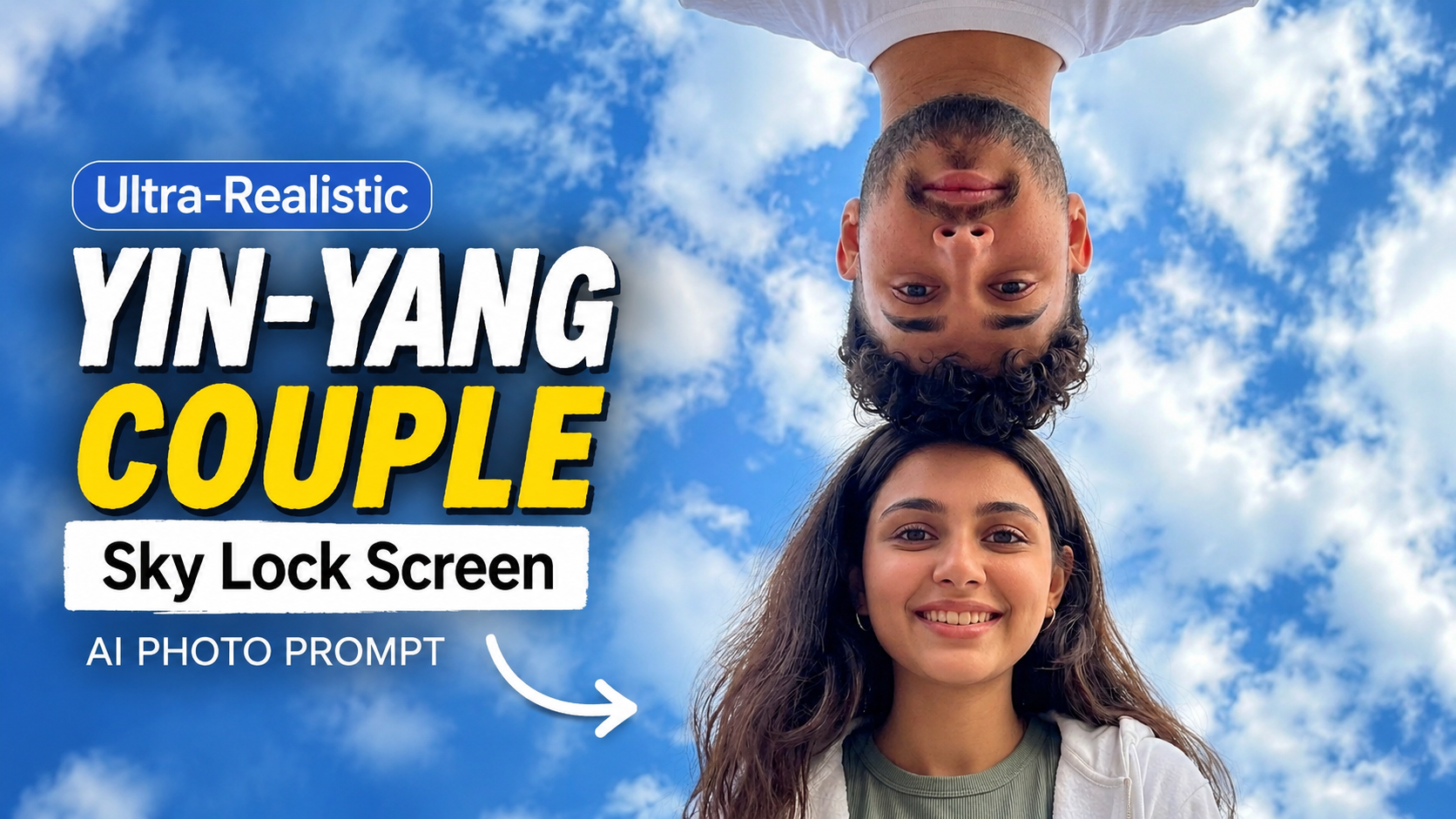
How to Use the Ultra-Realistic Yin-Yang Couple Sky Lock Screen AI Photo Prompt
1. Upload Clear Reference PhotosStart by uploading high-quality reference photos of both people. Make sure the faces are clearly visible, well-lit, and not covered by hair, sunglasses, or heavy filters. Clear references help the AI preserve facial identity more accurately.
2. Copy the Complete PromptCopy the entire prompt exactly as provided. It already includes the camera angle, composition, lighting, background, and iOS lock screen interface details needed to create the desired result.
3. Paste It into Your AI Image GeneratorOpen your preferred AI image generator and paste the prompt into the text input field. If the platform supports reference images, upload the photos before generating the image.
4. Enable Face Reference or Identity LockIf your AI tool offers features such as Face Reference, Character Reference, or Identity Lock, enable them. This helps maintain the original facial features and improves identity consistency.
5. Select the Correct Aspect RatioChoose a 9:16 vertical aspect ratio to match the proportions of a smartphone lock screen. This ensures the final image looks realistic and fits perfectly as a mobile wallpaper.
6. Keep the Lock Screen ElementsDo not remove the clock, date, flashlight icon, camera icon, or status bar from the prompt. These interface elements are essential for creating the realistic iOS lock screen appearance.
7. Generate Multiple VariationsAI-generated images can vary with each attempt. Generate three to five versions and compare the results to find the best facial match, composition, and lighting.
8. Download the Best ImageOnce you are satisfied with the final result, download it in the highest available resolution. The image is perfect for wallpapers, social media posts, thumbnails, or creative portfolio content
.By following these steps, you can achieve a highly realistic Yin-Yang couple portrait with a stunning low-angle perspective and an authentic iOS lock screen look.
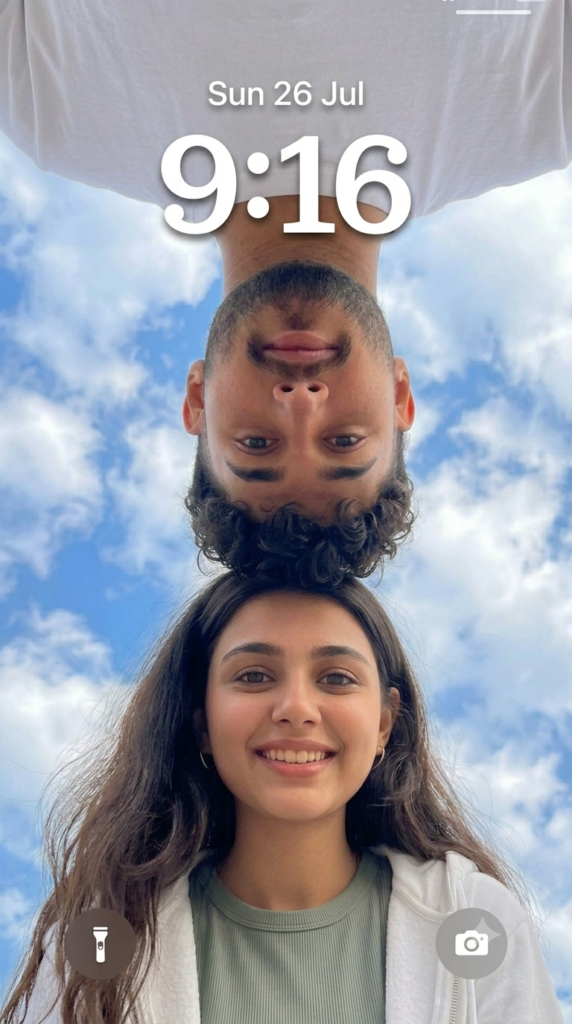
Core Concept: A creative, wide-angle low-angle photograph capturing a young couple's faces from a central point looking up, positioned in a mirrored, "yin-yang" style arrangement against a clear, blue, cloud-filled sky. The final image should look like an iOS lock screen screenshot.
Main Subjects:
Bottom Subject: A beautiful young South Asian woman with long, flowing dark brown wavy hair, smiling warmly and directly at the camera. She wears a sage-green ribbed knit crop top under a white zip-up hoodie. Her face is well-lit and clear.
Top Subject: A young South Asian man with dark curly hair and a light goatee (from the reference), positioned upside down relative to the frame. His face is mirrored with the woman's, positioned directly above her, also looking towards the camera. He wears a plain white crewneck t-shirt. His expression is calm.
Composition & Perspective:
A extreme low-angle shot looking directly upward from between the couple, making them the central, dominating figures.
Their heads are positioned nose-to-nose, creating a perfect symmetrical and mirrored pattern. The woman's head is upright at the bottom, and the man's head is upside down at the top.
The background is a vast, vibrant blue sky filled with scattered white, fluffy cumulus clouds.
Visual Details & Textures:
The woman's hair has natural texture and flow, partially framed by the hoodie. Her smile shows teeth, and her eyes are engaging.
The man's curly hair and goatee are prominent and clear.
The cloud textures are soft and defined.
The lighting is natural daylight, bright and even on their faces.
Interface Elements (to make it a complete Lock Screen):
Time & Date: Near the top center, just below the man's chin, is the digital clock. The time "9:16" is prominent in white, slightly transparent, large, bold font with a subtle drop shadow (standard iOS font style). Above it, in a smaller white font, is "Sun 26 Jul".
System Controls: At the bottom left, a clean, white, transparent circular button with a flashlight icon (flashlight glyph).
Camera: At the bottom right, a clean, white, transparent circular button with a camera icon (camera glyph).
Status Bar (implied): Make sure the very top of the frame where the man's shirt ends has a sliver of the actual phone status bar area.
Image Type: Highly realistic, high-resolution color photograph, mimicking a mobile phone screenshot.